
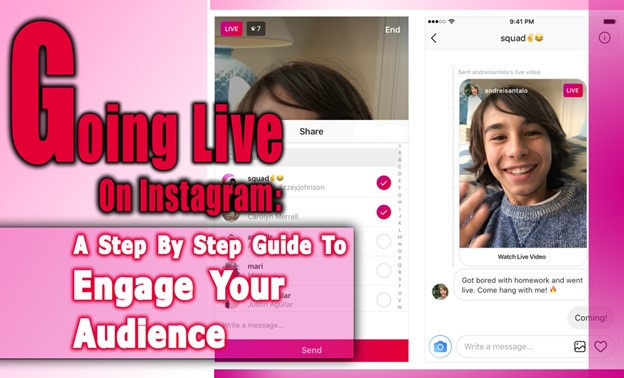
Being live means speaking to hundreds or even thousands of people at the very moment, feeling the raw power of real connection. Instagram Live is a unique opportunity to step in front of the camera, share your Story, and invite your audience to join the conversation in real time.
It’s a golden chance you can’t afford to miss, because no moment beats the power of now. But how do you turn this live broadcast into an unforgettable, engaging experience?
In this guide, we’ll explore how to go Live on Instagram and create streams that your viewers will love. Ready to shine? Let’s get started!
What is Instagram Live?
Have you ever thought about what makes Instagram Live so popular? It’s a special feature that allows you to do live video streaming directly inside Instagram. This means you can broadcast yourself in real-time and enjoy real-time interaction with your followers.
Unlike normal posts or even Instagram Stories, which are sometimes pre-planned or edited, IG Live is raw and spontaneous. That’s why it’s a great tool in modern Instagram engagement strategies, especially when you understand what the Instagram algorithm is.
As of 2026, Instagram has eligibility requirements for Live. Your account generally needs to be public and have at least 1,000 followers to start live streaming on Instagram. Accounts that don’t meet these requirements may see a message saying they are no longer eligible for Live.
Also, it’s good to know that IG livestreams don’t require you to have a huge number of followers. Your account just needs to be older than 30 days to start live streaming on Instagram.
And if you want to go beyond mobile, you can even use your desktop with special software like OBS or Riverside, though for that, you’ll need a professional account.
How to Go Live on Instagram? (iPhone, Android & PC)
Ready to hit the Instagram live button? Whether you have an iPhone, Android phone, or even a PC, here’s the easiest way to get started.
-
- iPhone and Android
Whether you’re using an iPhone or Android device, you can start an Instagram Live directly from the mobile app in just a few steps.
- Open Instagram and tap the Create (+) button, or swipe right from your feed to open the camera.
- Select Live from the available camera modes.
- Check your audience and settings. Depending on the options available to your account, you may be able to choose who can see your broadcast or use Practice mode before going public.
- Add a title if the option is available, and prepare your camera, microphone, lighting, and internet connection.
- Tap Live to start your broadcast. On mobile devices, Instagram provides interactive tools like the Questions feature that you can read more in The Power of “Ask Me a Question” on Instagram, where viewers can send you questions, or you can invite guests using Live Rooms.
- During the broadcast, interact with viewers through comments, questions, guests, and other Live features available to your account.
- When you’re finished, end the broadcast and choose the available options for saving, sharing, or repurposing your Live.
- Desktop
Instagram’s desktop Live workflow is different from going Live through the mobile app. For desktop streaming, you generally need a Professional Instagram account and access to Instagram Live Producer.
- Open Instagram on your computer and access the Live video option.
- Set your Live title and audience.
- Copy the stream URL and stream key provided by Live Producer.
- Open compatible streaming software such as OBS or another supported platform.
- Add Instagram as your streaming destination and enter the required stream information.
- Check your camera, microphone, and stream preview.
- Start the broadcast when everything is ready.
If you want to stream from a computer, Instagram Live Producer is designed for Professional accounts, such as Creator or Business accounts. You can connect Live Producer to compatible streaming software such as OBS, Riverside, or other supported tools to manage your camera, microphone, graphics, and other production elements.
Why Can’t I Go Live on Instagram?
If you can’t find the Live option or Instagram says you’re not eligible to go Live, check these common issues:
- You have fewer than 1,000 followers: Instagram currently requires at least 1,000 followers for Live access.
- Your account is private: The current eligibility requirement applies to public accounts.
- Your account has restrictions: Policy violations or account restrictions may affect access to certain features.
- You’re trying to use the desktop workflow without the required Professional account or Live Producer access.
- Your Instagram app needs updating: Make sure you’re using the latest available version.
The feature isn’t currently available to your account: Instagram sometimes changes or rolls out features gradually.
Tips to Consider When Streaming on Instagram Live
Want your live stream to shine like an Oscar-winning film? The secret is in the details, lighting, preparation, exciting invitations, and keeping viewers hooked throughout.
Follow these IG Live tips:
- Start strong! Don’t wait for viewers to join before saying anything. Begin with a friendly intro or a story right away. This helps avoid awkward silences and keeps people watching.
- Engage actively; encourage viewers to comment or send reactions during the live. For example, say: “If you haven’t liked it yet, tap the heart now!” This helps the algorithm show your live video to more people.
- Plan your content in sections; try dividing your live into a few parts: introduction, interaction time, and conclusion. Using short clips or interesting points keeps the pace lively.
- Tell stories and ask questions to engage the audience in Instagram Live. You might start with: “What made you join this live today?”
- Practice beforehand using Practice Mode, test your sound, lighting, and connection to avoid surprises during your real broadcast.
- Brand your live, use a consistent background, a catchphrase, or visuals that match your brand so viewers remember you.
- Keep a schedule, going live regularly, for example, once a week, builds anticipation and a loyal audience.
- Collaborate! Invite guests or influencers to join your live. This helps you reach new followers and creates dynamic conversations.
- Use all Instagram Live features available to you, like badges, filters, question boxes, and screen sharing, to make your broadcast fun and interactive.
- Manage your comments wisely; Use moderators to handle inappropriate messages and pin important comments or calls to action during the live.
- Don’t forget to focus on your IG Live promotion with countdown stickers, teaser posts, or stories so your audience sets reminders. You can schedule your live up to 90 days ahead.
- After finishing, save your video and share highlights as Stories or Reels to get more eyes on your content.
- Check your Instagram Live analytics after the stream to see what worked best and improve next time.
- Prepare for IG livestream challenges like poor internet or low viewership by having backup topics or Q\&A ready.
- Use the Instagram Live Q\&A feature by collecting questions from your followers beforehand and answering them live to keep things interactive.
By these tips you can have the success follower boosting and also if you want more people to watch when you go Live, you can use our methods to get free Instagram followers to increase your following and strengthen your online presence.
Instagram Live Tips table, with clear and actionable examples
| Stage | Key Tip | Practical Example |
| Before Going Live | Plan content | Outline 3 sections: Intro – Q&A – Wrap-up |
| Test setup | Use Practice Mode to check your lighting, sound, and internet connection. | |
| Promote in advance | Post a Story 3 days before: “This Friday, 8 PM Set your reminder!” | |
| Brand consistency | Have a consistent background + use a signature phrase or tagline | |
| During the Live | Start strong | Open with: “Welcome fam! Quick question: what’s your biggest Instagram challenge?” |
| Engage viewers | Say: “Drop a❤️ if you can hear me clearly!” | |
| Use features | Pin questions or invite a guest with Live Rooms | |
| Stay dynamic | Switch topics every 5 minutes to keep the pace lively | |
| After the Live | Save & repurpose | Save the video and share highlights as a Reel or Story |
| Check analytics | Review when engagement peaked and focus more there next time |
What Are the Benefits of Instagram Live? (Business Accounts)
Going live on Instagram for business accounts is more than a fun feature; it’s a powerful marketing tool with real impact.
- Real-Time Visibility: Going live puts your stream at the top of your followers’ feeds and sends them Instagram notifications. It’s a quick way to boost exposure and reach.
- Drive Instant Sales: Use Live video on Instagram for flash sales, product launches, or Q&As. With product tags, viewers can buy directly while watching.
- Build Brand Trust: Show behind-the-scenes moments, answer IG Live questions, or share real stories. Live content feels honest and personal, which builds loyalty.
- Interactive Engagement: Use live comments, polls, Q\&A boxes, and guest features to turn viewers into participants. It makes your sessions dynamic and memorable.
- Low-Cost, High Impact: All you need is your phone. No big budgets or fancy tools, just authentic content that connects.
- Grow a Loyal Community: Create recurring Instagram live shows or events. When people know what to expect, they’re more likely to return and invite others.
- Get Instant Feedback: Want to test a product idea? Ask live. Responses are immediate and can guide your decisions.
- Boost Conversions: Guide viewers to your site, mailing list, or offers using links and pinned comments. Great for moving leads through your funnel.
Going Live not only builds real-time trust and engagement, it also helps attract new audiences. If you want to double the impact, combine your live strategy with follower growth tactics. Here’s a step-by-step guide on How to Increase Instagram Followers.
Wrap-up
Using IG livestream takes your Instagram presence from simple posts to real-time moments where your followers become participants, not just viewers. This guide is on Going Live on Instagram!
Gives you the steps, tips, and tricks to plan, promote, stream, and grow your IG Live engagement. The more you practice, the better you’ll get, and your community will grow stronger and more involved.
So, are you ready to go live and make a difference? Also, consider that sharing your tips about “How to go live on Instagram?” can help us and every user to get data in this case. In the end, start your first Instagram Live and write your biggest fear right here in the comments.
Can I go live with guests or host a Live Room?
Yes. You can invite up to three guests for split-screen conversations or start a Live Room with four people in total.
How long can an Instagram Live be?
Maximum duration is 4 hours per session. If you reach the limit, you can always start a new Live.
How do followers find and receive notifications for my Live?
When you go live, your profile gets a “LIVE” badge and appears at the front of followers’ Stories feed; Instagram typically sends notifications to followers who have the app open.
Can I save or share my Live after it ends?
Yes. You can save the Live to your archive, download it, or share it to your Story (24 hrs.), Reels, IGTV, or feed, extending its visibility.
How can I interact with viewers and manage comments?
Viewers can comment, send hearts, and ask questions. You can pin comments, hide or turn off comments entirely, assign a moderator, or filter out offensive words, keeping engagement positive and controlled.