
You just snapped what you thought was the perfect photo, the lighting, the angle, every detail carefully composed. But then, when you upload it to Instagram, why does Instagram crop photos every time, slicing off important parts or changing the entire feel of your image? You think it’s a glitch, a bug, or just an unfair limitation.
Why should you lose control over your own creativity and vision? It’s frustrating to see your hard work disappear or get distorted without warning. This invisible cropping feels like a silent thief stealing the essence of your photos.
But what if you could understand exactly why this happens and, better yet, how to stop Instagram cropping photos so your images appear exactly as you want? If you’re ready to take control and make your pictures shine without compromise, keep reading!
Got an idea for a cool post? First, save the photo or video you want with the InstaLite Tools to make it easier to work with.
What is Instagram’s Photo Cropping Feature?
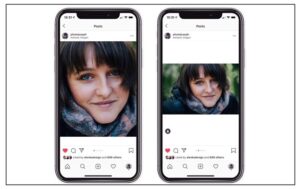
Instagram’s photo cropping feature is a built-in system that ensures every post fits seamlessly into the platform’s design. Since its early days, Instagram has favoured visual harmony, a clean, scrollable grid where every image aligns neatly. The Instagram crop tool maintains that uniform appearance across millions of feeds.
In essence, this Instagram crop photos feature was created for consistency and device compatibility, though it sometimes limits creative control for photographers and designers.
Initially, only square (1:1) photos were allowed. Over time, portrait (4:5) and landscape (1.91:1) orientations were added, but the app still enforces strict Instagram aspect ratio rules. Any image that doesn’t fit these proportions is automatically cropped or zoomed to match, which often trims important details around the edges.
Read more: Do you feel like your photos suddenly appear large and zoomed in? Discover the secrets and tricks in Why Does Instagram Zoom in On My Photos.
What’s new in 2026:
Instagram now also supports a taller **3:4 ratio (1080 × 1440 px)** for feed photos. This was introduced after the platform switched its profile grid preview from the old 1:1 square thumbnails to taller 3:4 rectangles, meaning even correctly-sized 4:5 posts can get a sliver trimmed off in the grid view unless you frame with that extra crop in mind.
> **Pro Tip:** Don’t just optimize for the single-post view, optimize for the grid preview too. In the trenches, we’ve seen accounts lose noticeable engagement simply because a subject’s face sat too close to the bottom edge of a 4:5 photo. When the grid re-crops to 3:4, that face gets clipped. Keep your focal point in the middle 80% of the frame, not just “somewhere in the ratio.”
Want to understand why some photos are cropped and others are not? Take a look at the Instagram Algorithm in 2025 and see what tips make posts visible.”
Aspect Ratio Standardization in 2026:
Instagram supports four primary aspect ratios in 2026:
– **Square image format (1:1):** The classic Instagram format, still useful for cross-platform assets.
– **Portrait (4:5):** The current default recommendation for feed posts, 1080 × 1350 px.
– **Portrait grid-match (3:4):** The newer, taller option, 1080 × 1440 px, built specifically to match how the profile grid now crops.
– **Landscape (1.91:1):** Best for wide images, though it takes up the least screen space in a portrait-dominated feed.
If your upload doesn’t fit one of these ratios, Instagram photo cropping automatically adjusts it (usually by trimming or zooming) so your feed stays consistent across screens.
> **Expert Insight:** Vertical, taller formats consistently claim more real estate on today’s phone screens, and that extra screen space still correlates with stronger scroll-stopping power. If you only remember one number, make it 1080 × 1350 px, that’s the safest all-purpose feed size in 2026.
### Carousel Consistency
When posting multiple images in a carousel, Instagram requires all photos to share the same aspect ratio, locked to whatever ratio you use on the first slide. Uploading a mix of vertical and horizontal shots forces the app to crop them uniformly, which can distort composition if not planned in advance. Carousels can now hold up to 20 slides, and while a 2024 update technically lets you mix orientations within one post, Instagram simply pads the mismatched slides with borders rather than cropping them cleanly, so it rarely looks polished.
### Differences Between Post Types
Instagram crop photos work differently across post formats.
– Single posts follow fixed ratios (1:1, 4:5, 3:4, or 1.91:1).
– Carousels force all photos to use the same ratio as the first one.
– Stories and Reels use 9:16 (1080 × 1920 px), which allows taller, full-view images.
Choose the format that best fits your composition to avoid unwanted cropping.
Preview and Thumbnail Uniformity
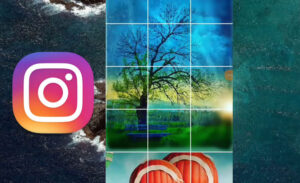
Every profile grid now uses tall 3:4 thumbnails instead of the old square crop. Even if your image is uploaded at 4:5, portrait, or landscape, Instagram crops the preview to fit this taller grid layout. This guarantees visual order, but may cut off key elements like faces or text if you’re not designing with the safe zone in mind.
> **Pro Tip:** Before you publish, always check the grid preview screen Instagram shows you during upload. It’s the single fastest way to catch a bad crop before it goes live, and it takes about three seconds.
Platform Optimization
Cropping isn’t just aesthetic; it’s also functional. Smaller, uniformly sized images load faster and display properly across different devices, reducing distortion and maintaining a smoother scrolling experience. Instagram also compresses images more aggressively as file size approaches its 30 MB photo cap, so keeping your export in the 5–15 MB range (at 1080 px wide) tends to preserve more detail after upload.
How to Make Your Picture Fit the Instagram Crop?
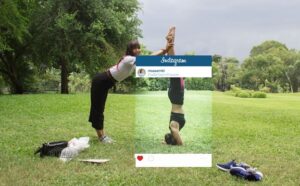
You can easily prevent unwanted cropping with a few smart adjustments. Understanding Instagram photo cropping rules helps you stay in control of your content’s look. When Instagram cropping photos isn’t an option, these techniques help you upload a full picture to Instagram.
**1. Edit Photos to Instagram-Supported Ratios Before Uploading**
Preparing your images this way guarantees that Instagram won’t crop or resize them unexpectedly. Use editing tools like Canva, Lightroom, or Photoshop to resize your images to one of these standard dimensions:
– 1080 × 1080 px (Square, 1:1)
– 1080 × 1350 px (Portrait, 4:5) — the current default for most feed posts
– 1080 × 1440 px (Portrait, 3:4) — best if you want zero cropping in the grid preview
– 1080 × 566 px (Landscape, 1.91:1)
Also, adding subtle photo borders for Instagram or increasing canvas space in apps like Photoshop and Canva keeps the full composition intact while meeting Instagram’s aspect ratio requirements.
**2. Use the “Expand” or “Fit to Screen” Option**
When uploading, pinch the image to zoom out and allow Instagram to add white or black photo borders for Instagram posts. This simple step ensures the entire photo stays visible and helps you stop Instagram cropping photos in unwanted ways.
Vertical (4:5 or 3:4) images naturally perform better on mobile feeds because they take up more screen space. Adjusting your image to fit this ratio not only prevents cropping but also improves engagement.
> **Expert Insight:** If your account leans heavily on grid aesthetics (think brand pages, portfolios, or photographers), design at 1080 × 1440 px (3:4) rather than 4:5. It costs you almost nothing in the single-post feed view, but it’s the one size that shows up untouched in both the feed and the grid.
**3. Post as a Reel or Story for More Flexibility**
Stories and Reels provide looser Instagram photo size restrictions than feed posts. If your image is unusually tall or wide, upload it there to maintain composition without heavy Instagram crop photos. Both use the full 9:16 canvas at 1080 × 1920 px.
**4. Plan Carousel Posts Carefully**
Edit all photos in your carousel to the same aspect ratio before uploading. Tools like Kapwing, Wave.Video, or Canva can batch-resize images easily, helping with consistent Instagram resizing images.
Instagram converts images to JPEG, so PNG, HEIC, or WebP may appear slightly altered. Export photos as high-quality JPEG (1080 px minimum) for best results and sharper detail after upload, following the platform’s recommended Instagram resolution guide.
> **Pro Tip:** Lock your carousel’s aspect ratio decision in before you even shoot, not after. Retrofitting a landscape shot into a 4:5 carousel to match your other slides is where most of the awkward, off-center crops happen. Decide the ratio at the planning stage and shoot (or crop) every slide to match from the start.
5. Preview Your Grid Before Posting
Preview your Instagram grid. You’ll see exactly how the Instagram photo cropping effect impacts your layout before sharing publicly, including how the newer 3:4 grid crop will treat a 4:5 upload.
Pros & Cons of Instagram Crop Photo
Even though the Instagram crop photos feature can feel restrictive, it comes with both advantages and drawbacks. Here’s a quick breakdown:
| Aspect | Pros | Cons |
| Feed Aesthetics | Keeps profiles visually consistent and professional-looking. | May cut off important details or subjects. |
| User Experience | Ensures a smooth, uniform browsing experience. | Limits creative freedom for photographers and designers. |
| Performance | Optimized images load faster across devices. | Compression can slightly reduce image quality. |
| Multi-Photo Posts | Maintains consistent sizing in carousels. | Forces all carousel images into one ratio. |
| Branding Control | Helps brands maintain a clean visual identity. | Restricts unique layouts or artistic compositions. |
| Mobile Optimization | Designed for seamless mobile viewing. | Can appear zoomed-in or awkward on a desktop. |
| Grid Preview (2026) | The taller 3:4 grid shows more of each vertical photo at a glance. | Photos shot for the older square/4:5 grid may now crop unexpectedly. |
Finally
Instead of viewing Instagram photo cropping as a restriction, think of it as a creative framework that shapes how your content appears across millions of devices. Once you understand why Instagram crops photos, you can design with purpose, creating posts that look perfect on every screen, from the single-post view to the grid.
By editing your images to proper Instagram dimensions, including the newer 3:4 grid-matched size, you’ll maintain both consistency and creativity. So, next time you upload, embrace the crop and use it to make your photos look intentional, cohesive, and unforgettable.