
You wake up in the morning, reach for your phone, and eagerly open Instagram to catch up on what your friends and favorite creators have posted overnight.
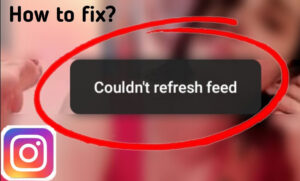
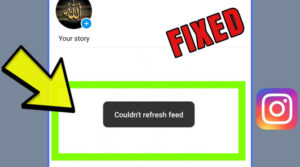
But instead of seeing fresh photos and stories, you’re met with the frustrating message, “Couldn’t refresh feed.” If you’ve ever thought about how to fix Instagram’s inability to refresh the Feed, you’re not alone.
It’s the kind of moment that makes you curious: What’s wrong with Instagram? This common issue can happen to anyone and can really disrupt your scrolling experience.
The good news is that most of the time, fixing it is pretty simple once you know what to look for. So, follow the rest of the “How to Fix Instagram Couldn’t Refresh Feed?” article to find your way to resolving the error!

Why Instagram Couldn’t Refresh Feed & How to Solve It?
The Instagram couldn’t refresh feed error isn’t caused by just one thing. Instead, it can arise from a variety of issues. Understanding these causes will help you quickly identify what’s stopping your Feed from refreshing and make it easier to fix the Instagram feed not loading without guesswork.
Let’s go through the most common reasons one by one, along with clear, actionable Instagram refresh problem solutions you can try immediately.
1. Instagram May Be Experiencing an Outage
Sometimes the problem isn’t with your phone or internet connection at all. Instagram may temporarily experience a service outage, technical issue, or server-side problem that prevents feeds from loading correctly.
- Check whether other Instagram features, such as Stories, Reels, or direct messages, are also affected. You can also check a reliable outage-tracking service such as Downdetector to see whether other users are reporting problems.
If Instagram is experiencing a widespread outage, there may be nothing to fix on your device. In that case, wait for Instagram to restore the service and try refreshing your Feed again later.
An Instagram outage can affect many users at once, while a problem that occurs only on your account or device is more likely to have a local cause.
Sometimes the feed refresh issue is also related to changes in the Instagram algorithm. If you want to know more, be sure to read the article What Is the Instagram Algorithm in 2025.
2. Weak or Unstable Internet Connection
Instagram needs a stable internet connection to load new posts and videos. If your Wi-Fi or cellular signal is weak, slow, or unstable, the app can’t connect to its servers properly, causing feed refresh errors, even if your internet seems fine.
- To fix Instagram not refreshing the Feed, start by toggling Wi-Fi or mobile data off and on. Restart your router if on Wi-Fi, switch between networks, or move to a stronger signal. Also, check that your mobile data plan isn’t out or restricted to avoid blocking Instagram updates.
3. Instagram’s Temporary Data May Be Causing Problems
Instagram uses temporary data to help the app load content efficiently. If this data becomes outdated or the app encounters a temporary glitch, the Feed may fail to load correctly.
- On Android, open Settings > Apps > Instagram > Storage and look for the option to clear the app’s cache. The exact menu names may vary depending on your phone manufacturer and Android version. iOS doesn’t provide the same direct “Clear Cache” option for Instagram. Instead, you can try closing and reopening the app, offloading the app, or deleting and reinstalling Instagram if the problem continues.
Before deleting Instagram, make sure you know your login details and have access to your account.
4. Outdated Instagram App or Bugs
Instagram constantly updates its app to add new features, improve security, and fix bugs. If you’re using an outdated version, it might not work well with Instagram’s current servers or APIs, leading to refresh errors. Sometimes, Instagram bugs introduced in an older version can prevent your Feed from loading correctly.
Bugs aren’t limited to the feed; sometimes images also suffer. For example, see Why Does Instagram Zoom in on My Photos.
- Head to the Google Play Store or Apple App Store and check if there’s an update available for Instagram. Installing the latest version ensures that you have all the newest fixes and compatibility improvements. Keeping your app updated is one of the simplest but most effective ways to avoid errors like the feed refresh problem.
5. Incorrect Date & Time Settings
Your phone’s date and time settings play a bigger role than you might expect. If the time or date on your device is incorrect or set manually to the wrong timezone, Instagram may have trouble syncing with its servers, causing refresh errors and other connection issues.
- Make sure your device is set to automatically update the date and time based on your network before starting to fix Instagram Couldn’t Refresh Feed. On Android, go to Settings > System > Date & Time and enable “Automatic date & time.” On iPhones, go to Settings > General > Date & Time and turn on “Set Automatically.” Correct time settings help fix Instagram’s ” couldn’t refresh feed ” issue by ensuring your phone’s clock syncs perfectly with Instagram’s servers.
6. Data Saver or Low Data Mode Is Enabled
If Data Saver mode is turned on either within Instagram or your phone’s system settings, it can limit background data usage to reduce your data consumption. While this is helpful for saving data, it also restricts the app from preloading content, which can cause your Instagram feed to stop refreshing properly.
- Within the Instagram app, go to Instagram Settings > Account > Cellular Data Use (or Data Usage), and make sure Data Saver or “Use Less Data” is turned off. On your device, check if your phone’s Low Data Mode is enabled and disable it if necessary. Turning off these modes allows Instagram to fully access the internet and refresh your Feed without restrictions.
7. Your Account Session May Need to Be Refreshed
A temporary account or login session issue can sometimes affect how Instagram loads content.
- Try logging out of Instagram and then logging back in. This refreshes your session and often resolves temporary login glitches. You can also log in through a web browser to check if your account is working properly. If needed, reset your password to help fix the ” Instagram couldn’t refresh Feed caused by account issues.
If the Feed works in the browser but not in the app, the problem is more likely related to the app or device. If the same problem appears across devices and networks, your account may require further troubleshooting.
8. Low Device Storage Space
When your phone’s Storage is almost full, it can affect how apps like Instagram function. Lack of free storage space may prevent the app from saving new cached data or processing images and videos properly, which can stop your Feed from refreshing.
- Free up space by deleting apps, photos, videos, or files you no longer need. You can also back up important media to cloud services like Google Photos, iCloud, or Dropbox, and remove local copies from your phone.
9. Reinstall the Instagram App
If none of the above steps to fix Instagram couldn’t refresh feed work, it’s possible that the app’s installation is corrupted or files are damaged, preventing it from refreshing your Feed.
- Uninstall Instagram completely from your device and restart your phone to clear any lingering temporary files. Then, download and install the latest version from your app store. After reinstalling, log in and check if this helps fix Instagram’s ” couldn’t refresh feed ” issue, and refresh your Feed normally.
10. App Permissions Are Not Properly Set
Instagram needs certain permissions to operate fully, such as access to data, Storage, and background refresh. If you accidentally denied any of these permissions, it might cause the Instagram error on iPhone or Android by blocking the app’s ability to update your Feed.
- Go into your phone’s settings and find the Instagram app permissions. Ensure that it has permission to use cellular data, run in the background, and access storage. On Android, go to Settings > Apps > Instagram > Permissions. On iPhone, check Settings > Instagram > and verify permissions.
Now that you’ve learned how to fix the ” couldn’t refresh feed issue, why not take it a step further? Save any content quickly and for free with the Instalite Instagram Downloader tool.
11. Check Instagram on Another Device or Network
One of the quickest ways to find the cause of the “Couldn’t refresh feed” error is to test Instagram somewhere else.
Try these combinations:
- Connect your phone to a different Wi-Fi network.
- Switch from Wi-Fi to mobile data, or vice versa.
- If possible, log in to Instagram from another device.
- Open Instagram in a web browser and check whether your feed loads.
If Instagram works on another network, your original connection may be causing the problem. If it doesn’t work on any network or device, the issue may be related to Instagram’s service or your account.
Now that you’ve learned how to fix the ” couldn’t refresh feed issue, why not take it a step further? Save any content quickly and for free with the InstaLite Instagram Downloader tool.
Summary Table for Fix Instagram’s Couldn’t Refresh Feed
| Cause | Description | Solution |
| Weak Internet | Poor or unstable connection | Restart the connection, switch networks |
| Instagram Server Down | Server outages or maintenance | Check outage sites, wait it out |
| Outdated App | Using an old app version | Update the Instagram app |
| Cache Issues | Full or corrupted cache | Clear Instagram cache (Android) or reinstall (iPhone) |
| Data Saver Mode | Data saver limits background data | Turn off Data Saver/Low Data Mode |
| Wrong Date & Time | Incorrect device time settings | Set the date & time to automatic |
| Low Storage | Not enough free phone space | Free up phone storage |
| Logged Out | Session expired or login problem | Log out and log back in |
| Missing Permissions | App lacks necessary permissions | Enable app permissions |
| App Corrupted | Damaged app files | Reinstall Instagram |

Final Thoughts
The “Instagram couldn’t refresh feed” error can feel frustrating and confusing, but thankfully, most cases have simple fixes. With the steps outlined in this guide, you’re well-equipped to troubleshoot the Instagram refresh issue and resolve the error, so you can get back to scrolling your favorite posts without interruption.
Now It’s Your Turn! Have you ever experienced the Instagram feed not loading? Which fix worked best for you? Still struggling with the refresh problem? Tell me your phone model and what you’ve tried so far, and I’ll help you figure out the next steps.
Got your own tip or workaround that worked to troubleshoot the Instagram feed refresh problem?
Share it in the comments below about “How to Fix Instagram Couldn’t Refresh Feed?” and help others in the community!
How do I refresh my Instagram feed manually?
First, check the internet connection, then simply pull down the feed screen from the top until you see a spinning icon, then release to trigger a manual refresh.
How do network restrictions, like firewalls or VPNs, affect Instagram Feed refresh?
Network restrictions can block Instagram’s data requests, leading to refresh errors; disabling VPNs or adjusting firewall settings often helps restore feed updates.
Is it possible that Instagram’s “Couldn’t Refresh Feed” error is device-specific?
Definitely, some device models or OS versions may have compatibility issues, causing refresh problems that updates or reinstalls can fix.
How does phone storage impact the Instagram feed refresh error?
Low Storage can limit Instagram’s ability to cache new posts, causing refresh errors; freeing up space often improves app performance.
What should I do if Instagram servers are down?
If servers are down, you’ll need to wait until Instagram fixes the issue; check outage tracking sites or Instagram’s official social media for updates.